I’ve written a couple of posts recently about rebuilding this site’s guts — the infrastructure, the deploy pipeline, the content cleanup. This one’s different: it’s a tutorial on the part I skipped over each time — how Hugo, and specifically the theme this site runs, actually turns a folder of markdown files into the page you’re reading right now. If you want to write a new post, tweak how something looks, or add an entirely new kind of page, this is the one to come back to.
The two big ideas behind Hugo theming
Before the diagrams, two concepts that make everything else click:
-
Content and presentation are separate. Your writing lives in
content/as plain markdown files, each starting with a block of front matter — a fenced-off section at the very top, between two---lines, holding structured metadata about the post rather than the post itself:--- title: "My Post" date: 2026-09-16T00:00:00-07:00 draft: false tags: ["hugo"] --- The actual body of the post starts here, as regular markdown.Templates read that front matter to decide things like what to put in the page’s
<title>tag, which tag-index pages a post shows up on, or whether to publish it at all (draft: truehides it from a production build no matter what’s in git). How the markdown-plus-front-matter combination gets wrapped in HTML — the nav bar, the footer, the styling — lives entirely inlayouts/(templates) andstatic/(CSS/JS/images). You can gut-renovate the look of the entire site without touching a single word you’ve written. -
A theme is just a set of layouts and static files, and your own repo can override any single piece of it. “Layouts” is a broader word than it sounds — it covers both the full page templates (a single post, a list of posts) and the smaller partial templates plugged into them, like the nav bar or the footer. A theme bundles all of that together with the CSS/JS that styles it. None of it is sealed: if your own repo has a file at the same path as one in the theme, yours wins, file by file. That’s the entire mechanism behind both changing how an existing page looks and inventing a brand-new kind of page, which we’ll get to.
Anatomy of a page
Every page on this site — the homepage, a post, the archive, the about page — shares one outer shell, baseof.html, and each page type plugs its own content into one slot inside it.
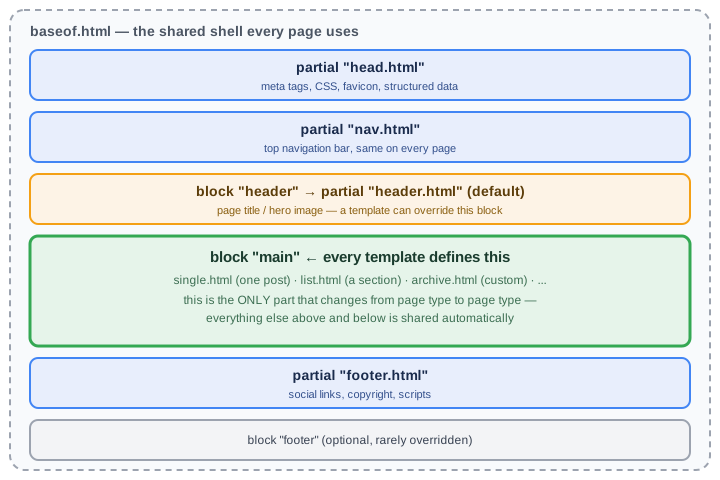
The important part is that green box. Whatever template renders your specific page — a single post, a list of posts, the archive — only has to define what goes inside {{ block "main" . }}...{{ end }}. It doesn’t need to know anything about the nav bar or the footer; those just show up for free.
How Hugo picks which template to use
This is the mechanism that makes both “alter an existing page” and “add a new page type” work the same way.
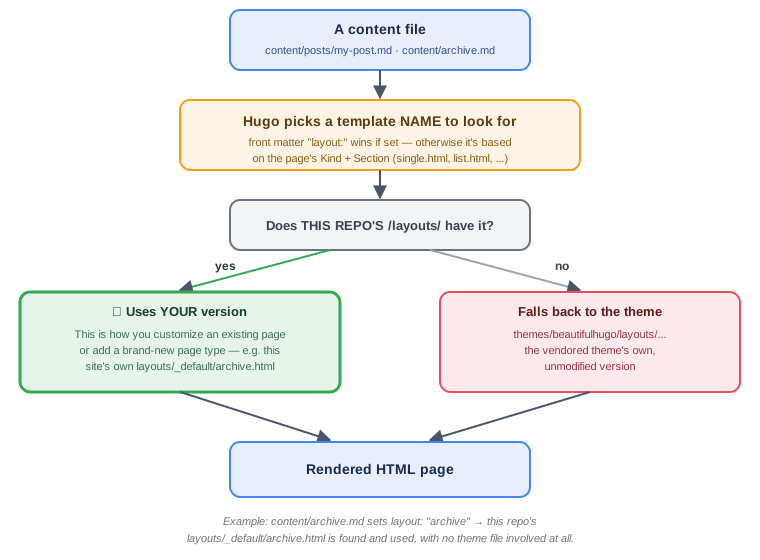
Two concrete examples, both real files in this repo:
- A normal post has no
layout:set, so Hugo falls back to its default naming (single.htmlfor one post). This repo doesn’t have its ownlayouts/_default/single.html, so it falls all the way through to the theme’s version, unmodified. content/archive.mdexplicitly setslayout: "archive"in its front matter. Hugo looks forlayouts/_default/archive.html— finds it right here in this repo (not in the theme at all) — and uses it. No theme file is even involved.
Altering an existing template
Sometimes you don’t want a new page type — you want to fix or tweak something the theme already does. Since the theme is vendored directly into this repo (not a submodule), you edit the file in place, right under themes/beautifulhugo/layouts/.
A real example: the homepage used to render two <h1> tags. The theme’s header.html had two separate, independent {{ if }} blocks — one for “the page has a hero image,” one for “the page has a title” — and the homepage satisfied both conditions at once, so both fired:
{{ if $bigimg }}
  <h1>{{ $title }}</h1>   <!-- fires if there's a hero image -->
{{ end }}
{{ if $title }}
  <h1>{{ $title }}</h1>   <!-- ALSO fires if there's a title — the bug -->
{{ end }}
The fix was one line — make the second condition explicitly exclude the first:
{{ if and $title (not $bigimg) }}
  <h1>{{ $title }}</h1>
{{ end }}
That’s the entire pattern for altering a template: find the file under themes/beautifulhugo/layouts/, read the surrounding logic carefully (Hugo templates have no compiler to catch a mistake — the only feedback you get is the rendered HTML), make the smallest change that fixes the actual problem, and rebuild to check.
Composing a brand-new template
Adding a genuinely new kind of page is the other half of the same mechanism — you just create the file in your own layouts/ instead of editing the theme’s. The site’s Archive page (grouping every post by year) is a real, complete example, and it’s only two files.
1. A content file that says what template to use:
---
title: "Archive"
layout: "archive"
---

Every post on this site, grouped by year.
2. A template at layouts/_default/archive.html (note: this lives at the repo root’s layouts/, not inside themes/) that defines the main block from the anatomy diagram above:
{{ define "main" }}
<div class="container" role="main">
  <div class="row">
    <div class="col-lg-8 col-lg-offset-2 col-md-10 col-md-offset-1">
      <article role="main" class="blog-post">
        {{ .Content }}
        {{ range (where .Site.RegularPages "Section" "posts").GroupByDate "2006" "desc" }}
          <h2>{{ .Key }}</h2>
          <ul>
            {{ range .Pages }}
              <li><a href="{{ .RelPermalink }}">{{ .Title }}</a></li>
            {{ end }}
          </ul>
        {{ end }}
      </article>
    </div>
  </div>
</div>
{{ end }}
GroupByDate does the actual sorting-and-bucketing work — it reads every post’s .Date and hands back the years newest-first, with posts inside each year also newest-first, no manual data-wrangling required. The rest is the same Bootstrap grid markup (container / row / col-lg-8 col-lg-offset-2) the theme uses everywhere else, kept for visual consistency.
The one extra step for a standalone page like this: link to it somewhere, since Hugo won’t do that automatically. This site adds it to the top nav via config/_default/config.toml:
[[menu.main]]
    identifier = "archive"
    name = "Archive"
    url = "/archive/"
    weight = 2
That’s genuinely the whole recipe. A content file with a layout:, a matching template under this repo’s own layouts/, and — if it should be reachable from the nav — a menu entry.
Content types and archetypes
An archetype is the front-matter template Hugo fills in for you when you scaffold a new piece of content. This site’s is archetypes/default.md:
---
title: "{{ replace .Name "-" " " | title }}"
slug: "{{ .Name }}"
date: {{ .Date }}
draft: true
tags: []
---
Running hugo new posts/my-new-post.md reads that file, substitutes in the filename and current timestamp, and drops the result at content/posts/my-new-post.md, ready to write into.
Two details worth understanding, both learned the hard way on this exact site:
slugpins the URL to the filename, on purpose. Hugo’s permalink config here (post = "/:slug/") derives the URL from.Slug, and without an explicitslug:, that falls back to the title — meaning a later title edit (fixing a typo, rewording something) would silently change the post’s live URL and break every existing link to it. Pinningslugto the filename at creation time means you can reword the title freely forever without touching the URL.- Tags should always be lowercase. Hugo’s taxonomy system treats
AWSandawsas two entirely different tags — inconsistent casing doesn’t get merged, it silently fragments what should be one tag into two half-populated ones. This site actually had that exact problem (Microsoftvsmicrosoft,Teamsvsteams) from years of inconsistent old posts, and it went unnoticed until an audit found it.
config.toml — the knobs that aren’t content or templates
Hugo’s site-wide configuration is split into two files here, not one:
config/_default/config.toml— the base: theme selection, the nav menu, taxonomies, and most[Params](site-wide values templates can read, likeParams.logofor the favicon/social-share image, orParams.organizationNamefor structured data).config/production/config.toml— overrides that only apply when building with-e productionspecifically: the realbaseURL, the analytics ID. Running the local dev server never touches these.
One gotcha worth flagging if you ever look at a config from an older Hugo tutorial: pagination used to be a flat pagination = 5. Hugo 0.128+ requires a table instead:
[pagination]
  pagerSize = 5
The flat form doesn’t just get ignored — it fails the build outright with failed to decode "pagination", which is a confusing error if you don’t already know the setting changed shape.
Writing an entry that actually looks good
A few things this site’s own content cleanup surfaced, worth doing from the start rather than fixing later:
-
Resize and compress images before they go in
static/img/. A modern phone photo is routinely 3-4 MB at full resolution — miles more than any blog post column actually displays. This site had multiple images over 2 MB apiece serving as page content; resized to a sane width and re-compressed, the same images looked identical at roughly a tenth of the size. -
Write real
alttext — don’t leave it empty and don’t guess from the filename. It matters for accessibility and for image search, and it only takes a second when you’re already looking at the photo you’re about to embed. -
Use
{{< figure >}}instead of plain markdown images when you want a caption. It’s a theme shortcode, not core Hugo, and it adds a click-to-zoom lightbox for free:{{< figure src="/img/example.jpg" alt="..." caption="A caption here" >}} -
Tag consistently, lowercase, and don’t over-tag. A handful of well-chosen tags make the Archive page and the tag-index pages actually useful for finding related posts later; a dozen loosely-related tags per post just adds noise.
Writing, previewing, and publishing
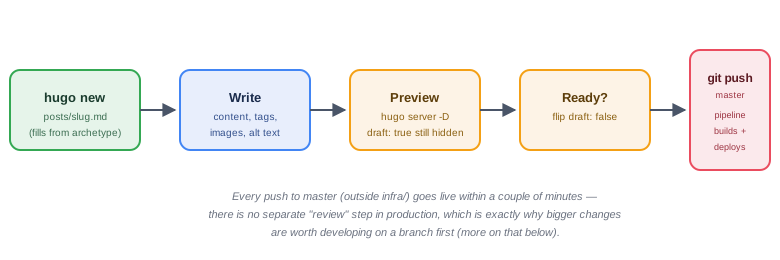
hugo server -D runs a local dev server that includes drafts (-D) and live-reloads on every save — that’s how every screenshot and example in this post got checked before it went anywhere near production. A post stays invisible to real visitors for as long as draft: true is set, regardless of what’s committed to git; flipping it to false is the actual “publish” moment.
When to branch (and when not to)
Here’s the thing that makes this repo’s workflow a little different from a typical project: every push to master that touches anything outside infra/ goes live within a couple of minutes, automatically. There’s no staging environment and no manual approval step in between. That’s great for velocity, but it means the usual “just commit straight to master, it’s a personal project” instinct needs one adjustment.
Commit straight to master for anything small and self-contained where a mistake is trivial to see and fix — a typo, a single broken link, flipping a post live, a one-line config tweak. This is genuinely how almost all of this site’s history has been managed, and it’s fine.
Use a branch when a change is large enough, or takes long enough to get right, that you wouldn’t want a half-finished version live if you had to stop partway through — a new template like the Archive page, a batch content migration touching dozens of files, a theme restructuring, anything where you want several commits’ worth of iteration before it’s presentable. The workflow:
git checkout -b add-new-thing
# ...commit as many times as you want here, push the branch itself
# freely -- pushing a branch other than master doesn't trigger anything...
git checkout master
git merge add-new-thing
git push origin master    # <- this is the moment it actually goes live
git branch -d add-new-thing
The key property: pushing a branch is inert as far as this site’s pipeline is concerned — the trigger is scoped to master specifically. That gives you a completely free place to iterate, force-push, and rewrite history if you want to, right up until you merge into master and push, which is the one moment that matters.
Where that leaves you
A theme bundles the page templates, the shared partials like the nav bar and footer, and the CSS that styles them all into one cohesive starting point; your own layouts/ directory silently wins over the theme’s, file by file, for anything at the same path; archetypes scaffold consistent front matter; and master is genuinely production. Everything else — the writing itself — is the part that was never really about Hugo in the first place.